
Auto-fill
Forms keep asking for the same things: your name, your address, your date of birth; in a doctor's office the clinician's NPI, the practice address, the fax number. Enter them once, and one click on Auto-fill puts them into the fields of a form that ask for them — with today's date where the form wants a date.
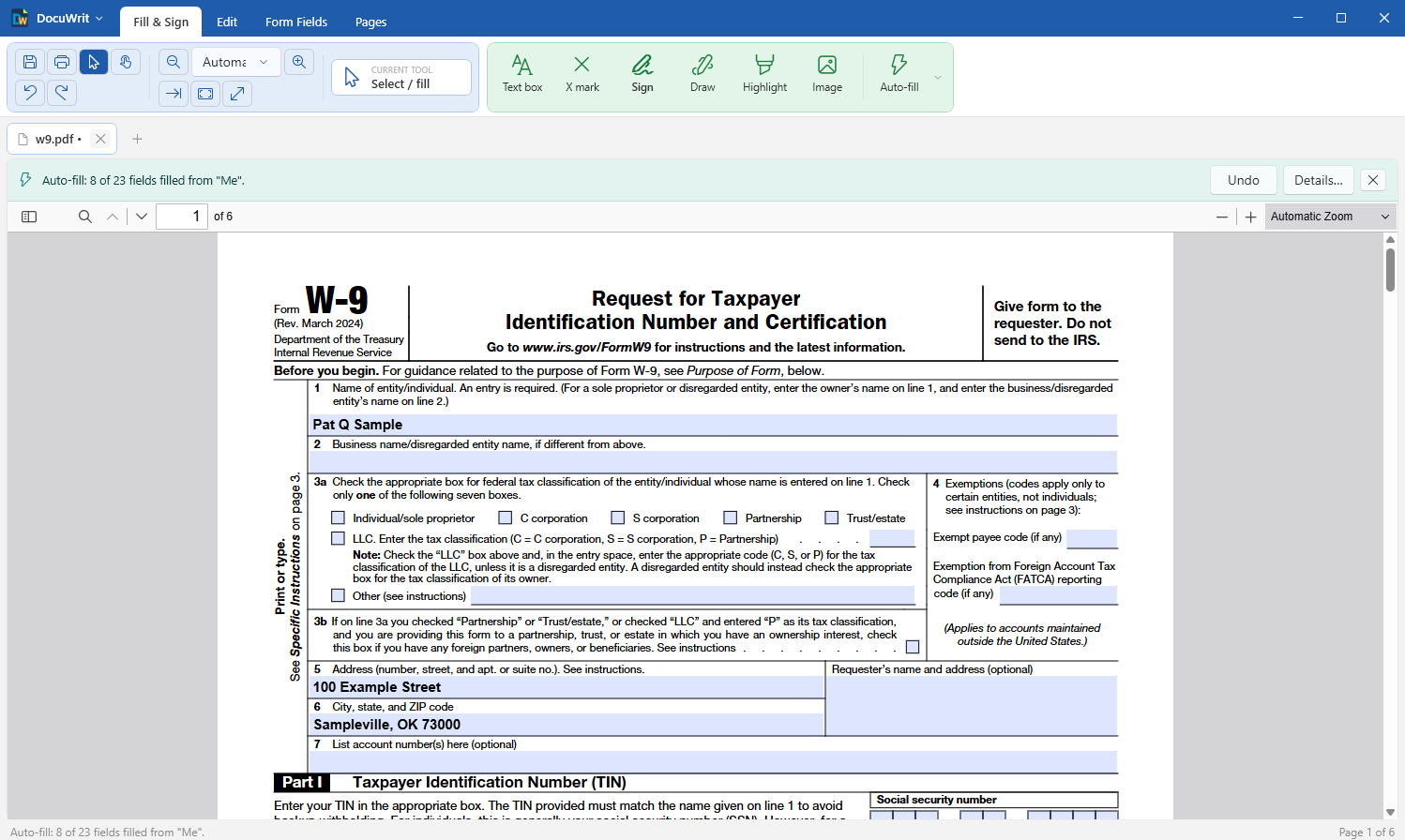
One click: the fields DocuWrit recognised are filled, the bar says how many
The first time
- On the Fill & Sign tab, click Auto-fill. With no values saved yet, DocuWrit opens Auto-fill values.
- Choose what the set is for: Person, Health-care provider, Business, or Blank.
- Type what you want filled in. Leave the rest empty — an empty entry is simply never used. Entries such as Full name or City, State ZIP are built from their parts; you do not type them twice.
- Press Save. From now on the Auto-fill button fills in the open form.
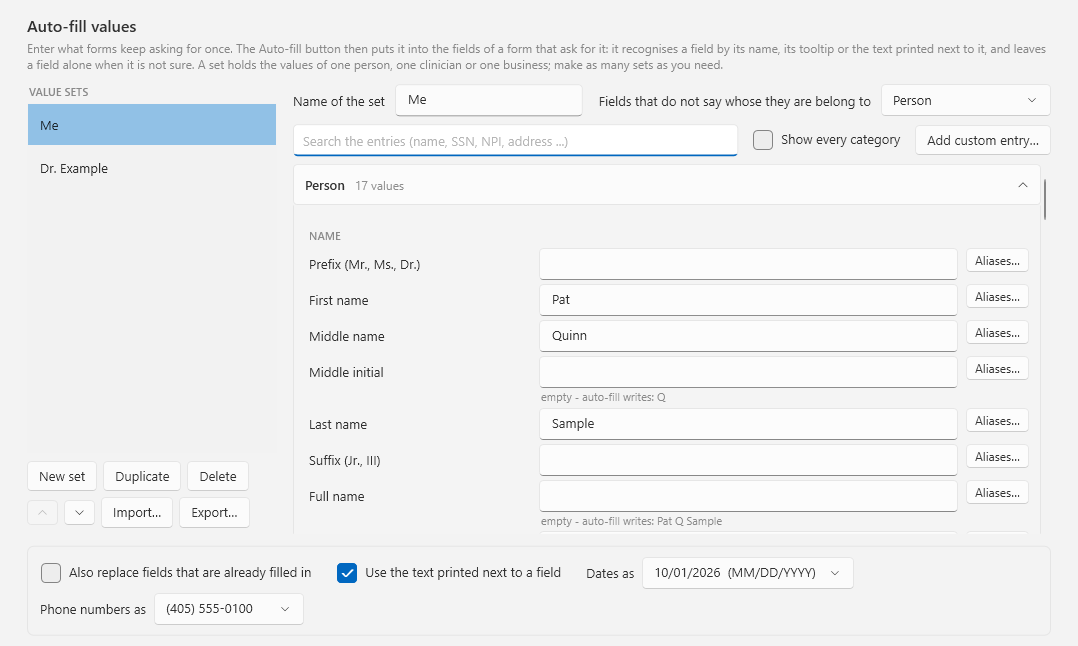
Auto-fill values: sets on the left, the entries of the selected set on the right
Filling a form
Open the form and click Auto-fill. A bar above the document reports the result, for example Auto-fill: 14 of 22 fields filled from “Me”, with two buttons:
| Button | What it does |
|---|---|
| Undo | Puts back what the filled fields held before — exactly those fields, nothing else. |
| Details… | Lists every field: which entry it was recognised as, and why it was or was not filled in. |
What it never touches: fields that already hold a value (unless you switch on Also replace fields that are already filled in), signature fields, buttons, read-only and hidden fields.
More than one set
A value set holds the values of one person, one clinician or one business. Make as many as you need: one for yourself and one for your spouse; in a doctor's office, one per clinician with the NPI, DEA number, license, practice address, phone, fax and tax ID.
- The arrow next to the Auto-fill button lists the sets. Click one to fill the form from it; it becomes the set the button uses.
- Manage auto-fill values… (same arrow, or DocuWrit menu > Auto-fill) opens the editor: new set, duplicate, rename, delete, reorder.
- Export… writes one set to a file and Import… reads it on another computer — handy for sharing a clinician's set inside an office. The exported file is plain text; DocuWrit warns you before it writes it.
Whose field is it?
DocuWrit looks at more than the wording. Spouse first name, Employer phone, Physician NPI and the phone number under an Emergency contact heading each belong to somebody, and are filled only from that part of the set. A field that does not say whose it is belongs to the owner of the set — choose it at the top of the editor (Fields that do not say whose they are belong to: Person, Health-care provider, Practice / facility or Business).
It also handles the usual ways forms split things up: a date of birth in three boxes, a phone number as area code and number, a social security number in three parts, a name as Last, First MI, check boxes for Male / Female or marital status, and dates in the format the field asks for.
Aliases and your own entries
Every entry has a list of wordings it answers to. First name, for example, is also given name, fname, forename and nombre; capitals, spaces and underscores do not matter, so FirstName, first_name and txtFirstName are all the same wording.
- Aliases… next to an entry shows its wordings. Switch one off, or add your own.
- Add custom entry… makes an entry the built-in list does not have — a customer number, a locker number, a licence plate — with its own wordings and a value in every set.
- Teach a field. If a field was left alone that you have a value for: Details…, select the field, choose the entry it belongs to, press Remember. Next time that field is filled.
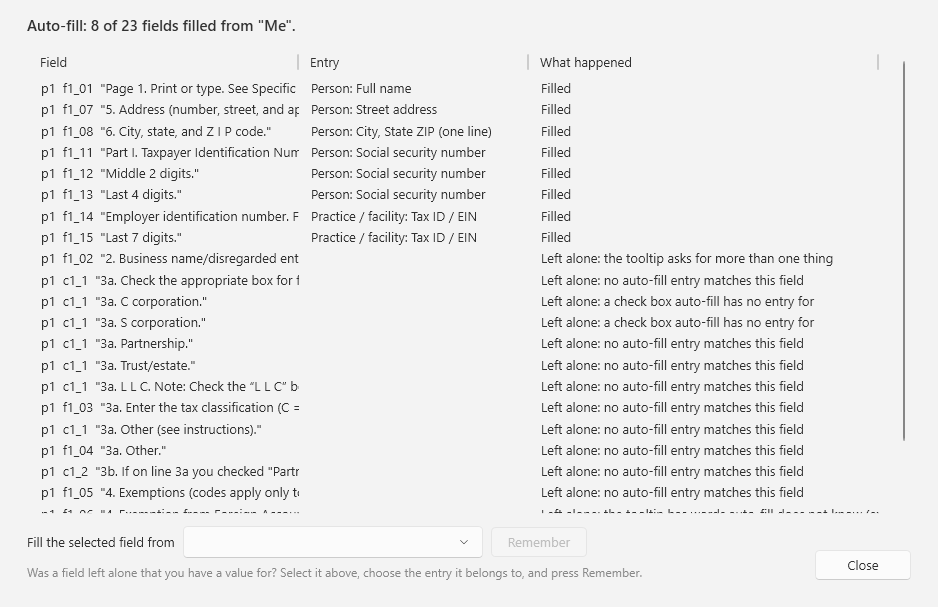
Details: what happened to every field, and why
Options
| Option | Meaning |
|---|---|
| Also replace fields that are already filled in | Off by default: what is already in the form stays. |
| Use the text printed next to a field | On by default. Helps on forms whose fields have meaningless names (Text1, f1_07) and no tooltips. |
| Dates as | The date format used when the field does not ask for one itself. |
| Phone numbers as | (405) 555-0100, 405-555-0100, 405.555.0100, digits only, or as typed. |
Where your values are kept
- On your computer only, in the file
%LocalAppData%\DocuWrit\autofill.json. Nothing is sent anywhere; DocuWrit has no account and no cloud. - Identity and account numbers are encrypted for your Windows account: social security, driver license, passport, Medicaid and Medicare numbers, DEA number, tax ID, insurance member ID, bank numbers. In the editor they are shown as dots until you press Show.
- Everything else in the file (names, addresses, phone numbers) is readable text, protected by your Windows sign-in like your other documents.
- An exported set is plain text, including the numbers above. Pass it on only the way you would pass on the values themselves, and delete it afterwards.
What it does not do
- It does not understand “either / or”. A form that wants your social security number or your employer identification number gets both when the set has both.
- One of each per set: one provider, one employer, one parent. A form with two of them gets neither.
- Forms without usable names are filled from the text printed next to the fields, which works less well, above all when a caption runs over several lines.
- It fills form fields only. A form that is just a picture of a form has no fields; use the Text box tool there (Fill & Sign).
Next: Digital Signatures.