
Recognize Text (OCR)
A scanned page is a picture of text. It looks like a document, but you cannot search it, select a sentence or copy a number out of it. Recognize text reads the picture and lays the text it finds invisibly on top of it, word over word. The page looks exactly as before — and now it can be searched, selected, copied, highlighted and exported as text.
Everything happens on your computer. No page is sent anywhere; the internet is not used.
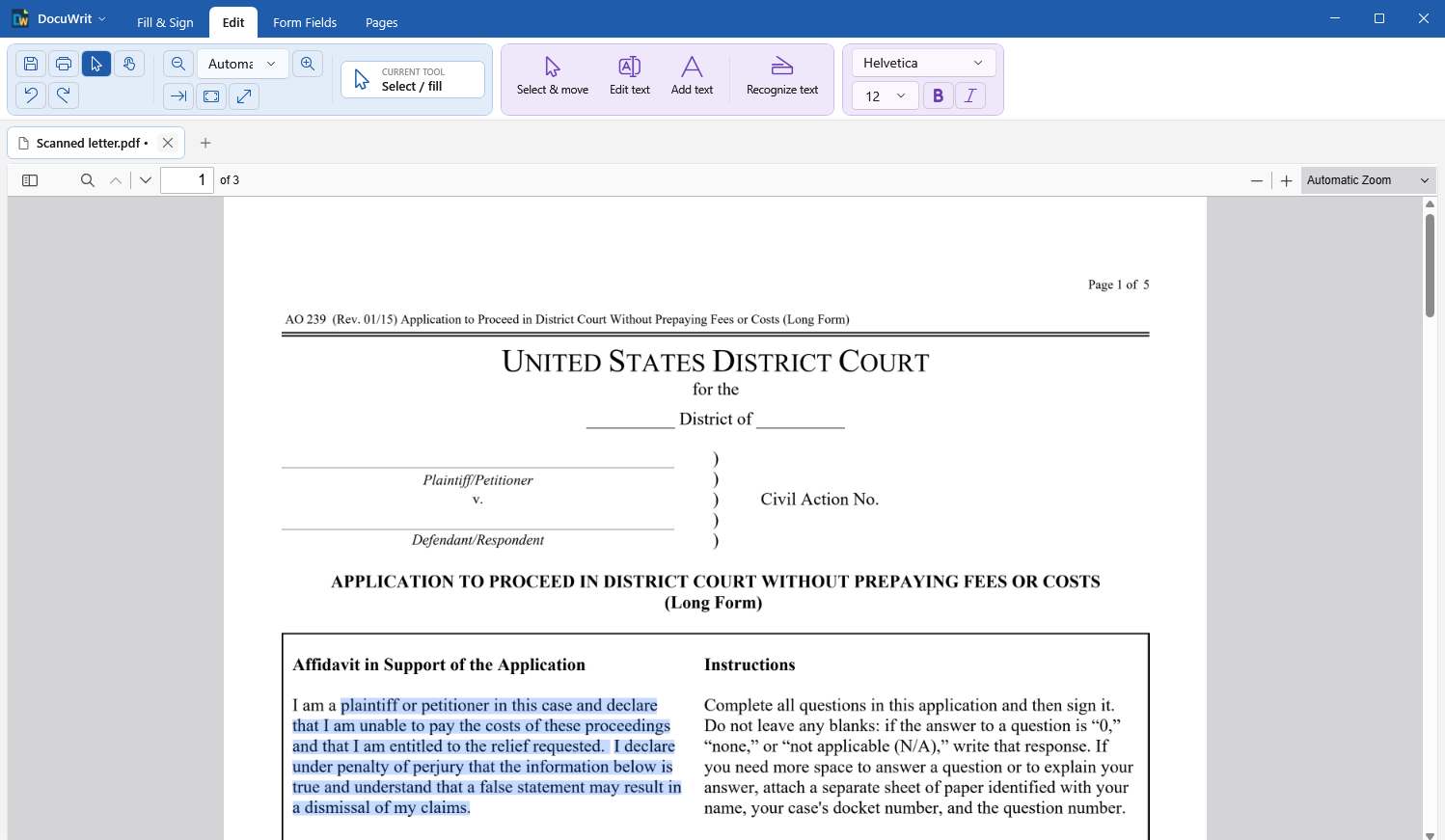
A scan after Recognize text: the text can be selected like in any other PDF
How to
- Open the scanned PDF. When DocuWrit notices that pages have no text, the line at the bottom of the window says so.
- On the Edit tab choose Recognize text.
- Choose the pages and tick the language of the text, then press Recognize. A page takes about a second or two.
- Save. Until then, Ctrl+Z takes the text out again.
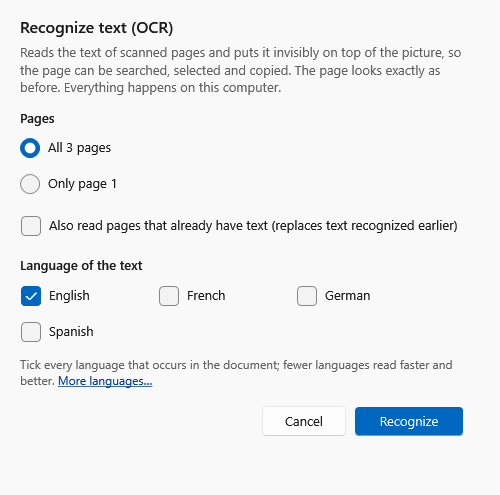
Recognize text: which pages, which language
| In the window | Meaning |
|---|---|
| All pages without text | The normal choice. Pages that already have real text are left alone, so a document that is partly scanned and partly typed is handled correctly. |
| The selected pages / Only page … | Just the pages picked in the thumbnail view, or the page you are on. |
| Also read pages that already have text | Reads a page even though it has text — for example a letterhead that is text over a scanned letter, or to run again with another language. Text recognized earlier is replaced, never doubled; real page text stays. |
| Language of the text | Tick every language that occurs. Fewer languages read faster and make fewer mistakes. |
Languages
DocuWrit comes with English, Spanish, French and German. For another language, click More languages… in the window: it opens a folder (%LocalAppData%\DocuWrit\tessdata). Download the language's file — for example ita.traineddata for Italian — from the Tesseract project's tessdata_fast collection and put it into that folder. It is listed the next time you open the window. DocuWrit does not download anything by itself.
What you can do afterwards
- Search the document (the magnifier in the bar above the page).
- Select and copy text with the mouse.
- Highlight text with the Highlight tool.
- Export the text: DocuWrit menu > Export as pictures or text > Plain text.
- Other programs — your desktop search, a document management system, a browser — find the text too, because it is stored in the PDF the standard way.
What to expect
- Clean scans of printed text are read almost without mistakes. Poor faxes, small print, coloured backgrounds and stamps over text produce mistakes; handwriting is mostly not recognized.
- A page that was scanned sideways, upside down or slightly crooked is read anyway. The page itself is not turned; use Pages > Rotate for that.
- The picture is never changed, and the recognized text is invisible. So a recognition mistake does not show on the page or in print — it only means that a search for that word misses it.
- The recognized text cannot be edited as page text, and Edit text does not offer it. To correct or cover something on a scan, put a Text box on top.
- After recognition DocuWrit tells you on which pages the engine was unsure.
- Restricted documents cannot be changed, so text cannot be added to them; see Restricted documents.
- Text recognition needs the Microsoft Visual C++ runtime, which most PCs have; the installer fetches it from Microsoft when it is missing.
Next: Build Fillable Forms.