
Build Fillable Forms
The Form Fields tab turns any PDF into a form that can be filled in — in DocuWrit or in any other PDF program. Everything it writes is standard PDF, stored the way Adobe Acrobat stores it: fields, fonts, formats, calculations and buttons.
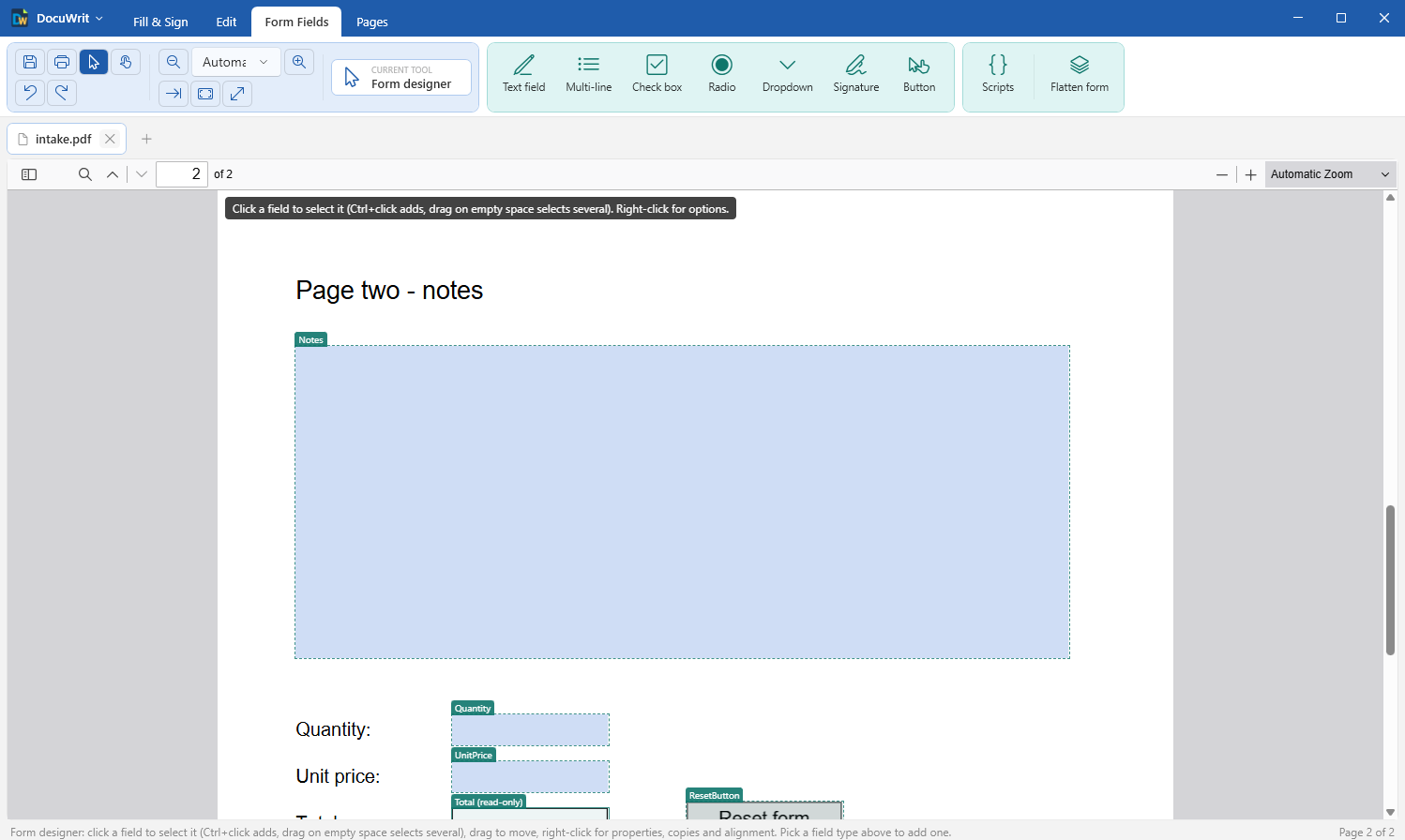
The form designer: each field is a named box
Adding fields
Pick a field type in the ribbon, then place it on the page:
| Field | How to place it |
|---|---|
| Text field, Multi-line, Dropdown, Signature, Button | Drag a box where the field should go. |
| Check box, Radio | Click where it should go; it is placed at the standard size (12 × 12 pt). Drag instead for a custom size. |
The tool stays active so you can place several in a row. Click its button again, or press Esc, to stop. Each new field gets a name straight away (Text1, Check2 ...); rename it in its properties.
- Radio buttons that belong to one question must share a group. Add the first one, and while it is selected add the others: they join its group.
- Check boxes and radios draw their own square or circle. When the boxes are already printed on the form and the field should just sit over them, switch the box off: in the field's properties (Draw the box itself), or right-click > Hide the box / circle.
- Signature fields mark a place to sign: with the Sign tool (a picture of a signature), or with a digital ID — Digital sign offers every empty signature field for a click.
- Buttons do something when clicked: see Buttons below.
Arranging fields
With no field type selected, the Form Fields tab is the form designer:
| To | Do this |
|---|---|
| Select a field | Click it. Ctrl+click adds to the selection; drag across empty space to select several; Ctrl+A selects every field on the page. |
| Move | Drag, or use the arrow keys (1 pt; with Shift, 10 pt). |
| Resize | Drag a handle of the selected field. |
| Copy | Ctrl+D duplicates below; Ctrl+C then Ctrl+V pastes below the originals. The right-click menu also has Duplicate to the right and Paste here. |
| Line up | Select two or more, right-click: align left / right / top / bottom, centre, same width / height / size. With three or more: distribute evenly. |
| Delete | Delete. |
| Change properties | Double-click the field, press Enter, or right-click > Properties. |
For check boxes and radios the right-click menu also offers Use this size for new boxes (in this file, or always).
Changing several fields at once
Select the fields — ten check boxes, a column of text fields — and open the properties the same way (double-click one of them, Enter, or right-click > Properties of N fields). One dialog shows what they have in common:
- A setting that is the same in all of them shows its value; one that differs starts empty or undetermined.
- Only what you change is written, to every selected field. Everything else keeps the value each field had.
- The whole change is one step for Ctrl+Z.
Typical uses: switch the box of twenty check boxes off in one go, give a whole table of fields the same font and size, make every field of a finished section read-only.
Field properties
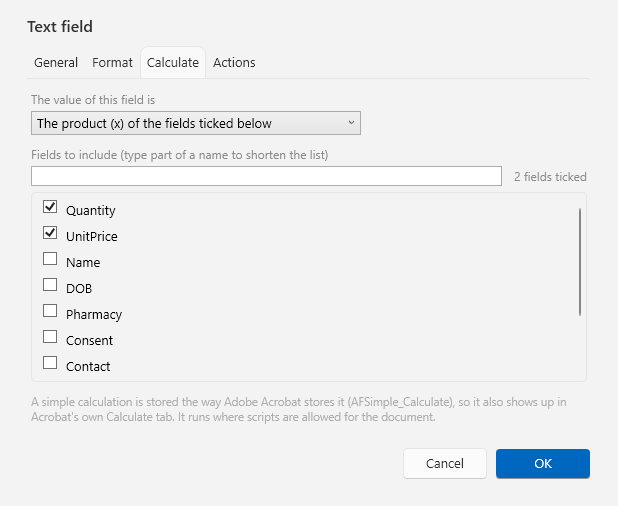
Field properties: a total that multiplies two other fields
The dialog has up to four tabs: General, Format, Calculate and Actions.
| Property (General) | Applies to | Meaning |
|---|---|---|
| Field name | all | The name stored in the PDF. Fields with the same name share one value. |
| Group | radio buttons | Radio buttons in one group are one question: only one can be chosen. |
| Tooltip | all | Shown when the mouse rests on the field. |
| Default value, Max characters, Multi-line | text fields | Max characters 0 means no limit. |
| Choices, Default choice | dropdowns | One choice per line. |
| Caption | buttons | The text on the button. |
| Font, Font size | text fields, dropdowns, buttons | See Fonts. Font size 0 means automatic. |
| Text colour, Fill colour, Border colour | buttons | A colour from the list, or any colour as #RRGGBB. Fill and border can be None. |
| Mark style, Value when checked, Checked by default, Draw the box itself | check boxes, radios | The mark can be a check, circle, cross, diamond, square or star. |
| Visibility | all | Visible, Hidden, Visible but does not print, Hidden but prints. See below. |
| Required, Read-only | all | Required fields are outlined in red until they are filled in. A read-only field shows its value but cannot be typed into. |
Hidden and read-only fields
| Setting | On screen | On paper | Good for |
|---|---|---|---|
| Visible | shown | printed | ordinary fields |
| Hidden | not shown | not printed | values a script needs but nobody should see: an intermediate result, a code |
| Visible but does not print | shown | not printed | instructions, a Reset or Print button |
| Hidden but prints | not shown | printed | text that should only appear on the paper copy |
In the designer a hidden field stays visible as a hatched box with a tag such as (hidden) or (does not print), so you can still select it; a read-only field has a solid outline and the tag (read-only). Read-only is the right setting for a calculated total: the form fills it in, the person filling the form cannot overwrite it.
Fonts
The font list of a field has three parts:
- Helvetica, Times, Courier (built in) — part of every PDF program; they add nothing to the file.
- Fonts already in this document — marked (in this document). A form made elsewhere keeps the fonts it came with.
- Fonts installed on your computer. The font you pick is embedded in the document in full, so the form looks the same on a computer that does not have it. That adds roughly 100 KB to 1 MB per font.
Only fonts whose license allows embedding in a document that others will edit are listed; fonts that forbid it, symbol fonts and a few font formats (PostScript-outline fonts, font collections) are left out. One style per family: there is no separate bold or italic for field text.
Format: numbers, money, dates
The Format tab of a text field decides how its value is shown and what may be typed:
| Format | Options | Example |
|---|---|---|
| Number | decimal places; separator style (1,234.56 · 1234.56 · 1.234,56 · 1234,56); negative numbers with a minus sign, in red, in parentheses | 1,234.50 |
| Currency | the same, plus the currency symbol and whether it stands before or after the number | $1,234.50 |
| Percentage | decimal places, separator style | 0.256 is shown as 25.6% |
| Date | a pattern from the list or your own: m/d/yyyy, mm/dd/yyyy, dd.mm.yyyy, yyyy-mm-dd, mmm d, yyyy ... | Mar 15, 2026 |
| Time | HH:MM, h:MM tt, with or without seconds | 2:30 pm |
| Special | ZIP code, ZIP + 4, phone number, social security number | (555) 123-4567 |
| Custom script | your own format and keystroke scripts |
A number field refuses letters while you type; a date field offers a date picker. Formats are stored as the standard form functions (the ones Adobe Acrobat writes), so other PDF programs that run form scripts understand them.
Calculate: totals without writing a script
On the Calculate tab choose what the field's value is — the sum, the product, the average, the minimum or the maximum of other fields — and tick those fields in the list (type part of a name to shorten it). That is all: an order form with Quantity, Unit price and a Total that is the product of the two needs no script.
- Give the total a format (Currency) and make it Read-only.
- For anything the list cannot express, choose Custom script and set
event.valueto the result. - Simple calculations are stored the way Adobe Acrobat stores them (as its own “value is the sum of” setting).
Buttons
A button has a caption, a font and colours (General tab) and one action (Actions tab):
| When the button is clicked | What happens |
|---|---|
| Reset the form | Every field goes back to its default value. |
| Print the document | Starts printing, as Print in the ribbon does. |
| Open a web link | Opens the address in the web browser. |
| Run a script | Runs the JavaScript you enter. |
Buttons usually should not appear on paper: set their Visibility to Visible but does not print.
Scripts
Besides formats, calculations and button scripts, the Actions tab holds a Validate script for text fields and lists (it can reject a value) and a Mouse Up script for check boxes and radios. Form Fields > Scripts lists every script of the document in one place. Every script is checked before it is saved. All of that is described in Scripts in documents.
Flatten form
Flatten form burns every field and annotation into the pages. What was typed stays visible exactly as it is, but can no longer be changed: the fields are gone. Use it on a finished form you are about to send. Ctrl+Z reverses it as long as the document is open.
Next: Pages, Printing & Export.