
Digital Signatures
DocuWrit signs in two ways. Sign places a picture of your signature on the page — like signing on paper. Digital sign seals the document with your digital ID: anyone who opens it can see who sealed it, and any change made afterwards either breaks the seal or shows up as added later. This page is about the second kind.
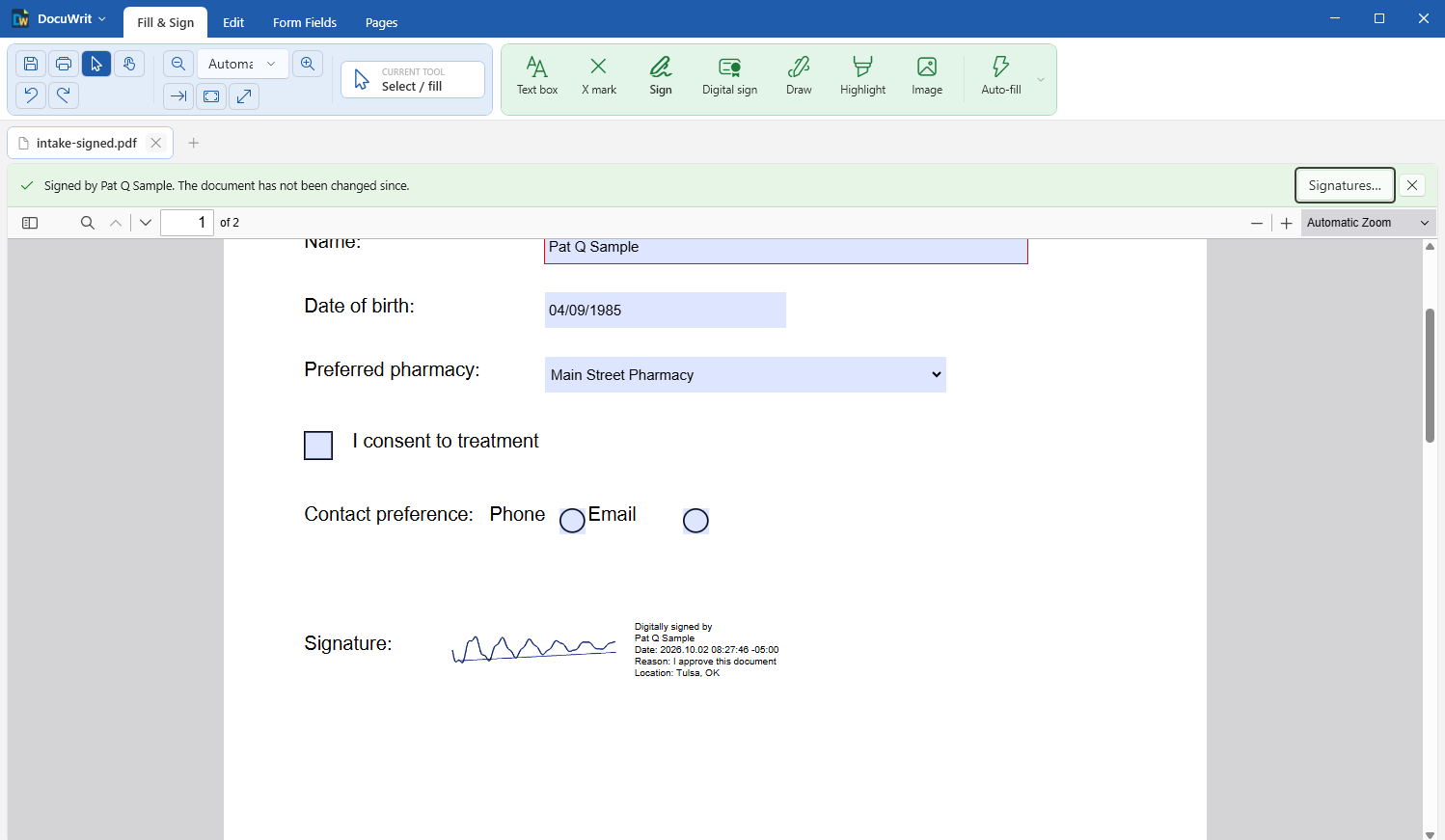
A signed form: the visible signature, and the bar that reports what checking it found
First: a digital ID
A digital ID is a certificate with a private key that only you hold. DocuWrit uses the IDs in the Windows certificate store of your account, so you have three ways to get one:
| Kind of ID | How | What readers see |
|---|---|---|
| A self-signed ID — free, ready in seconds | Digital sign > Digital IDs… > New… (or New… in the Sign window). Enter your name; e-mail address and organization are optional. | The document is unchanged and was signed with this ID. Their program adds that it cannot confirm who the signer is until they choose to trust your certificate. |
| An ID from a certificate authority — bought, or issued by your employer | Import… the .pfx or .p12 file you were given and enter its password. An ID that is already installed in Windows is listed without importing. | Your name as confirmed, on every computer that trusts that authority. |
| An ID on a smart card | Windows normally lists the card's certificates with your others while the card is plugged in; signing then asks for the card's PIN. | As for an authority's ID. We have not been able to test DocuWrit with a smart card yet. |
Signing a document
- Finish the document first: fill in the fields, add what needs adding. Signing is the last step.
- On the Fill & Sign tab choose Digital sign > Sign with a digital ID…
- Drag a box where the signature should appear. If the form has an empty signature field, it is marked Click to sign here: click it instead.
- In the window that opens, choose your digital ID and what the signature shows, then press Sign…
- Choose where to save the signed document (DocuWrit suggests name-signed.pdf). It is written to that file at once.
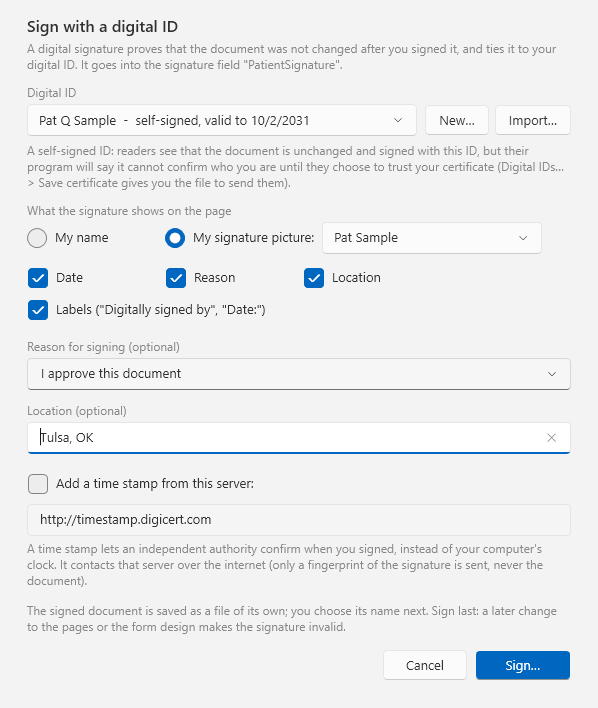
Sign with a digital ID
| In the window | Meaning |
|---|---|
| Digital ID | The ID to sign with. New… makes a self-signed one, Import… brings one in from a file. |
| My name / My signature picture | What stands at the left of the visible signature: your name in large letters, or one of the signature pictures you saved with the Sign tool (Fill & Sign). |
| Date, Reason, Location, Labels | The lines at the right: “Digitally signed by …”, the date and time, and the reason and location if you enter them. |
| Reason for signing, Location | Optional. Stored in the signature and shown to whoever checks it. |
| Add a time stamp | Off by default: see Time stamps. |
Sign without a visible signature… (same menu) seals the document without showing anything on the page. The signature is then found under Signatures in this document… only.
Several people signing
A digital signature is added to the file; what was there is left exactly as it was. So a second and a third person can sign after the first — each opens the signed file, signs, and saves — and every earlier signature stays valid.
Checking the signatures of a document
A document that carries digital signatures opens with a bar above it:
| Bar | Meaning |
|---|---|
| Green | Every signature is intact, nothing was added after the last one, and this computer trusts the signers' certificates. |
| Yellow | The signed content is unchanged, but with a caveat: this computer cannot confirm who the signer is (a self-signed or unknown certificate), or something was added to the document after signing (another signature, filled-in fields). |
| Red | A signature is not valid: the document was changed after it was signed, or the signature is damaged. |
Signatures… on the bar (or Digital sign > Signatures in this document…) lists every signature with its details:
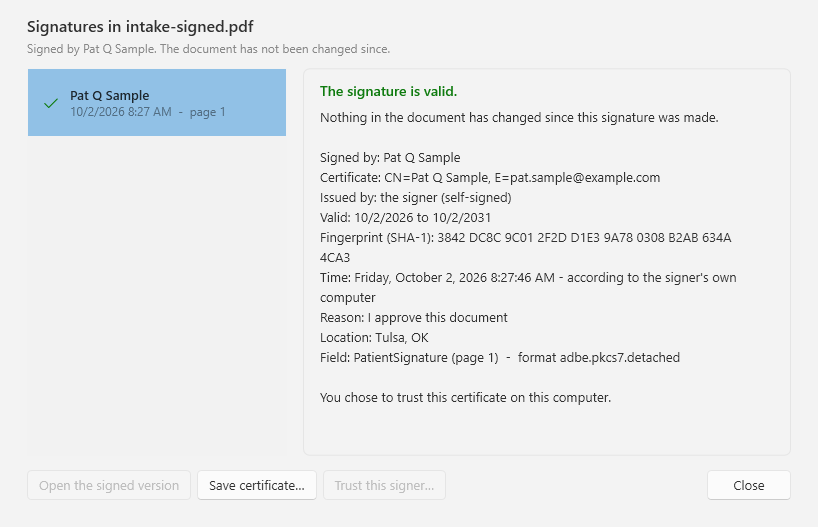
Who signed, with which certificate, when — and what checking found
- Open the signed version — when something was added after a signature, this opens the document exactly as it was when that signature was made, in a new tab, so you can compare.
- Save certificate… saves the signer's certificate as a file.
- Trust this signer… tells Windows (your account) to trust that certificate; signatures made with it then show green in DocuWrit (and in other programs that use the Windows trust list). Do it only when you know the certificate really is the signer's: anyone can make a certificate with any name in it. Ask the signer to read you the fingerprint shown in the window and compare. Windows asks you to confirm.
The time shown is the signer's own computer clock unless the signature carries a time stamp. Whether a certificate was revoked is not checked: that would mean contacting the certificate authority's servers.
After signing
- Edits break the seal. Changing page text, pages, the form design or the scripts, and flattening, rewrite the document; its signatures are then no longer valid. DocuWrit warns you and asks before it does that.
- Filling in fields does not break it — the new values are added behind the signature — but the bar then says that something was added afterwards.
- Let others check you. Digital IDs… > Save certificate… writes your certificate (without the private key) to a
.cerfile. Send it to the people who receive your signed documents; once they trust it, your signatures show as confirmed on their computers. - Keep your ID. Back up… writes the ID with its private key to a password-protected
.pfxfile — for another computer, or for the day Windows is reinstalled. Whoever has that file and its password can sign as you.
Restricted and certified documents
Many official forms are restricted: anyone can open them, but their author has laid down what may be done with them. DocuWrit keeps to that:
- A restricted form can be signed in a signature field its author put there (when the author allows filling in the form). Dragging a new signature box onto it is refused.
- A document certified with “no changes allowed” is not signed at all; a certified document that allows signing is signed in its existing fields only.
Time stamps
Normally a signature carries the date and time of your computer. With Add a time stamp, DocuWrit asks a time-stamp server (the address is yours to choose; a public one is suggested) to certify when the signature was made. A reader then sees the time as confirmed by that authority.
This is the only feature of DocuWrit that uses the internet, and it is off until you tick the box. What is sent is a fingerprint (hash) of the signature — never the document, and nothing about you beyond what any connection reveals.
What it does not do
- It is not a “send for signature” service. There is no e-mail round, no web page where others sign, no audit trail on a server. Each person signs the file in a PDF program and passes it on.
- It does not make you known to strangers. Only a certificate from a recognised authority does that; a self-signed ID has to be trusted by each reader.
- No long-term validation data is embedded, and revocation is not checked when verifying.
- The visible signature uses Western European characters. Others appear as “?” on the page; the certificate still holds the real name.
- We test with an independent open-source validator (every one of 159 real forms signed by DocuWrit checks out there), not with every PDF program. If a program you use reports a problem with a signature made here, please tell us.
- Whether a digital signature is enough for a contract or a filing depends on the rules that apply to it. Ask whoever receives the document; this page is not legal advice.
Next: Edit Page Text.