
DocuWrit Quick Start
From download to a filled-in, signed PDF in about five minutes.
1. Install
- Download the installer from the DocuWrit page and run it. It installs for all users of the PC, so Windows asks for administrator permission.
- If Windows shows “Windows protected your PC”, choose More info, then Run anyway. The installer is signed by JimRan LLC (the prompt names the publisher); the warning fades once Microsoft has seen enough downloads of a release. You can also compare its SHA-256 with the one on the download page.
- On the options page, tick Install the DocuWrit Printer if you want to print to DocuWrit from other programs. It is optional and can be added later from the DocuWrit menu.
2. Open a PDF
Start DocuWrit from the Start menu. The first thing you see is the New tab page with your recent files. Open a PDF in any of these ways:
- click Open, or press Ctrl+O;
- drag a PDF from File Explorer onto the window;
- right-click a PDF in File Explorer and choose Open with > DocuWrit.
Every document opens in its own tab, like a web browser.
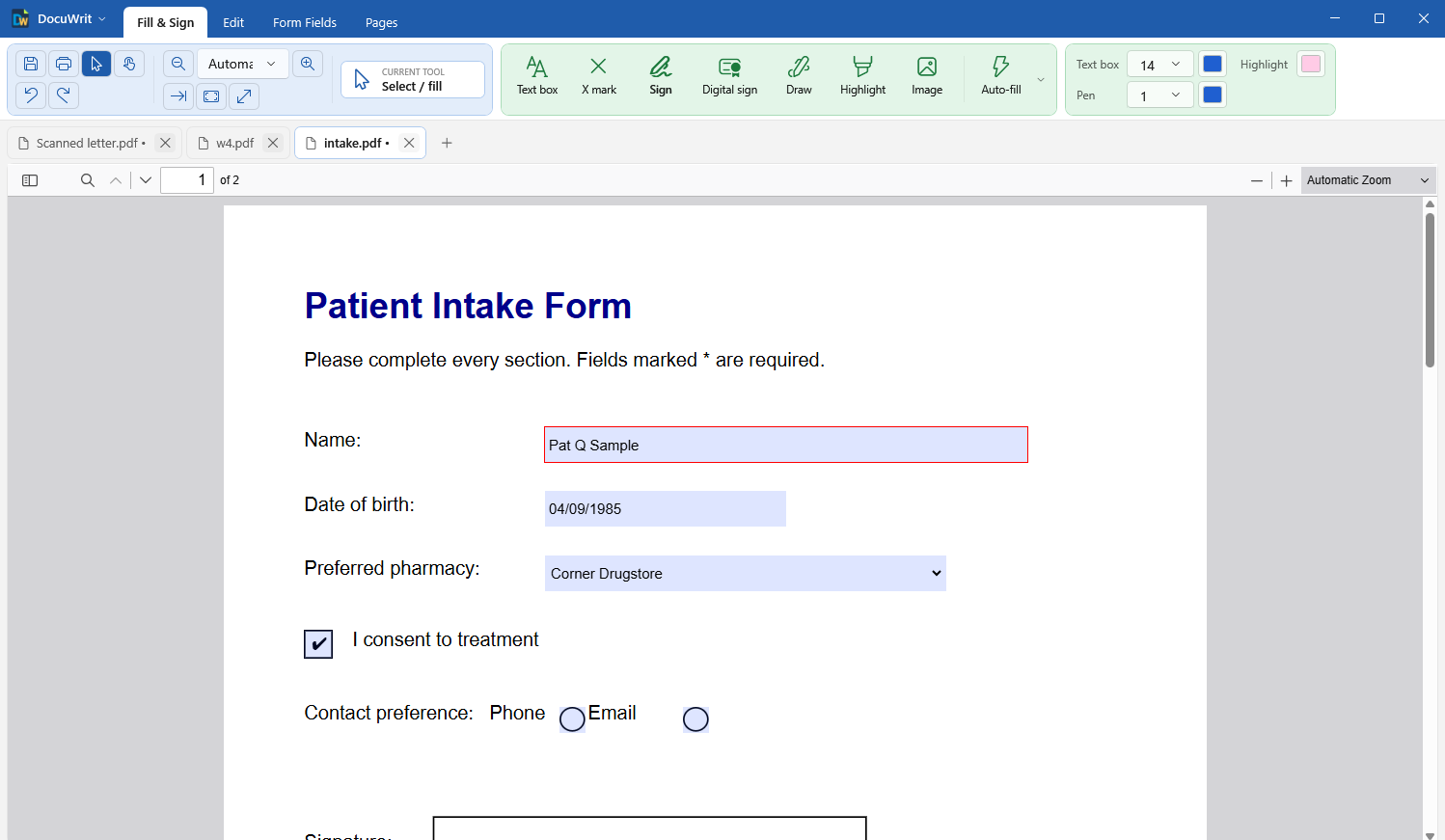
A form open on the Fill & Sign tab
3. Fill it in
If the PDF is a real form, its fields are shaded: click one and type. Check boxes, radio buttons and dropdowns work as you expect.
If the “form” is only a picture of a form (a scan, or a document nobody added fields to), use the Fill & Sign tools instead:
- Text box — click anywhere on the page and type.
- X mark — click each printed check box that needs an X.
Press Esc to put a tool down.
4. Sign it
- Click Sign on the Fill & Sign tab.
- The first time, choose Upload a signature picture (a photo or scan of your signature; white paper is made transparent) or Draw or type a signature.
- Move the signature to where it goes and click to place it. Drag it or use its handles to adjust, then click anywhere else.
An uploaded signature is saved, so next time it is one click in the Sign menu.
5. Save
Press Ctrl+S to save, or Ctrl+Shift+S to save a copy under a new name. The result is an ordinary PDF that opens in any PDF program.
Make DocuWrit your PDF program (optional)
Open the DocuWrit menu (top left) and choose Make DocuWrit the default PDF app. Windows opens its Default apps page, where you pick DocuWrit for .pdf. Windows does not let a program make that choice for you.
Next: Fill & Sign in detail, or go back to the overview.