
Pages, Printing & Export
The Pages tab
| Button | What it does |
|---|---|
| Rotate left / right | Turns the current page a quarter turn — or every page selected in the thumbnail view. |
| Move earlier / Move later | Moves the current page — or the pages selected in the thumbnail view — one place towards the front or the end. |
| Delete pages | Asks for a range (From / To, both preset to the current page). With pages selected in the thumbnail view, deletes exactly those. A document always keeps at least one page. |
| Extract | Opens a range of pages, or the selected pages, as a new document in its own tab; save it where you like. The document you took them from is not changed. |
| Split | Saves every page as its own PDF file (name-page-01.pdf, name-page-02.pdf …) in a folder you choose. |
| Insert PDF | Picks one or more PDF files and inserts their pages after the current page (several files go in the order of their names). |
| Combine | Joins two or more PDF files into a new document and shows its thumbnails, ready to be put in order. Also under DocuWrit menu > Combine PDF files; no document needs to be open. |
| Thumbnails | Shows every page as a small picture instead of the document: the place to organize pages, see below. |
Page changes can be undone with Ctrl+Z and are only written to the file when you save.
Organizing pages in the thumbnail view
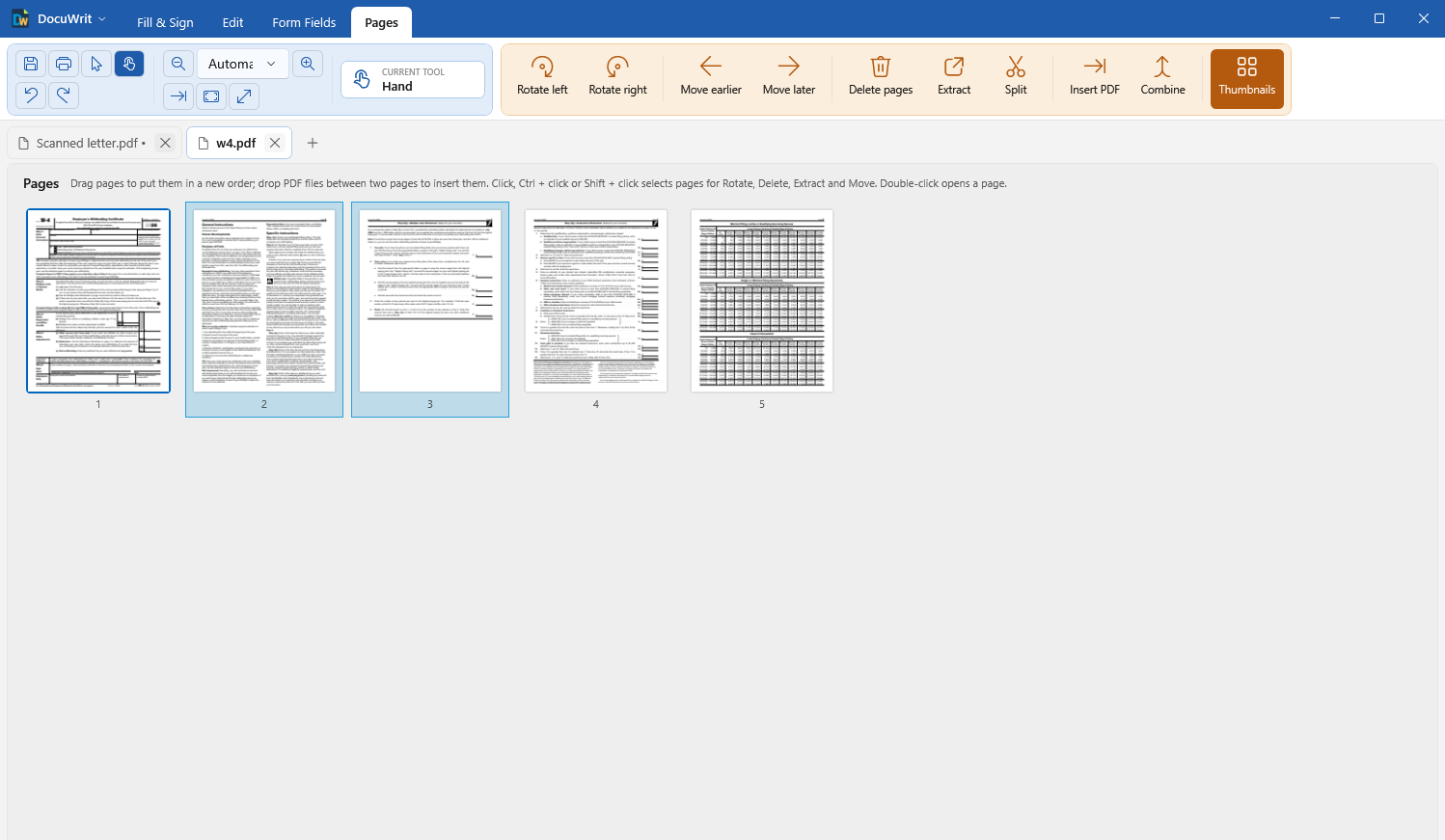
The thumbnail view: every page at a glance
- Select pages with a click, Ctrl+click (add one) or Shift+click (a run of pages). Rotate, Move, Delete and Extract then apply to the selection.
- Drag a page — or the whole selection — to a new place. A bar between two pages shows where it will land. Near the top or bottom edge the view scrolls.
- Drop PDF files from a folder window between two pages to insert them right there.
- Double-click a page to open it in the normal view.
What combining keeps and what it does not: the pages and their fill-in fields come along (a field whose name is already used gets a new name, so the two do not share a value). Bookmarks and form scripts of an added file do not come along.
Viewing
The first group of the ribbon is the same on every tab: Save, Print, the Select pointer and the Hand (drag the page to scroll), Undo and Redo, zoom out / in with a zoom list, Fit width, Fit page and Full screen (Esc leaves it).
Printing
Ctrl+P, or the printer button, opens the print dialog. Filled-in fields and annotations are printed as you see them.
Export as pictures or text
DocuWrit menu > Export as pictures or text saves the open document in another format. Unsaved entries and annotations are included.
| Format | Result |
|---|---|
| PNG pictures | One sharp picture per page: name-1.png, name-2.png ... Larger files. |
| JPEG pictures | One picture per page, smaller files. Best for photos and scans. |
| TIFF picture | All pages in one multi-page file. |
| Plain text | The text of the pages as a .txt file, without layout. Pages that are pictures (scans) give no text until it has been recognized: Edit > Recognize text. |
For pictures, choose a resolution from 96 to 600 dpi: 150–200 dpi is right for the screen and email, 300 dpi for printing.
Next: The DocuWrit Printer.