
The DocuWrit Printer
An optional printer that appears in every program's Print dialog. Print to it and DocuWrit asks what to do with the pages: save them as a PDF, as pictures, or as text — or open them in DocuWrit to fill in and sign.
Windows already has “Microsoft Print to PDF”, and it keeps working. The DocuWrit Printer adds the picture and text formats, and the shortcut straight into DocuWrit.
Installing it
- With DocuWrit: tick Install the DocuWrit Printer in the installer.
- Later: DocuWrit menu > Install the DocuWrit Printer. Windows asks for administrator permission, because adding a printer always needs it.
To remove it, use DocuWrit menu > Remove the DocuWrit Printer. Uninstalling DocuWrit removes it too.
Using it
- In any program, choose Print and pick DocuWrit Printer.
- A moment later the Save printed document window appears, showing the first page so you can see which print job it is.
- Choose a format and click Save — or click Open in DocuWrit.
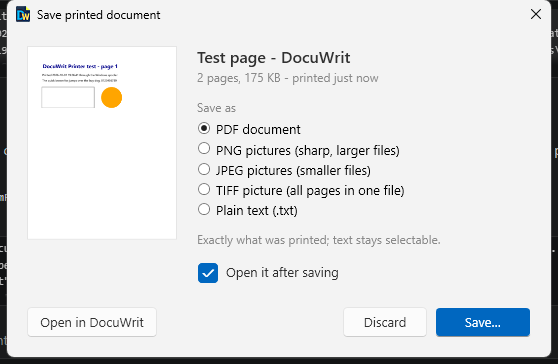
What appears after you print
| Save as | Result |
|---|---|
| PDF document | Exactly what was printed; the text stays selectable and searchable. |
| PNG / JPEG pictures | One file per page (name-1.png, name-2.png ...), at 96 to 600 dpi. |
| TIFF picture | All pages in one file. |
| Plain text | The text of the pages. A page that was printed as a picture gives no text. |
Open in DocuWrit opens the printed pages as a new, unsaved document — handy for filling in and signing something that only exists in another program. Discard throws the print job away.
DocuWrit remembers the format, the resolution and the folder you used last.
How it works, and your privacy
The DocuWrit Printer is an ordinary Windows print queue that uses Windows' own “Microsoft Print To PDF” driver; DocuWrit installs no printer driver of its own. Instead of asking for a file name, Windows hands the finished PDF to a small DocuWrit helper that runs in the background while you are signed in (about 30 MB of memory). Nothing you print leaves your PC.
Troubleshooting
| Problem | What to do |
|---|---|
| Nothing appears after printing, and the print queue shows the job with Error | The background helper is not running. Start DocuWrit once: it starts the helper, and Windows delivers the waiting job by itself within a few seconds. Nothing is lost. |
| The printer is not in the list | It was not installed: use DocuWrit menu > Install the DocuWrit Printer. |
| Installing the printer fails | The Windows feature Microsoft Print to PDF must be on (it is by default): Windows Settings > search for “Turn Windows features on or off”. Details of what went wrong are in C:\ProgramData\DocuWrit\printer-setup.log. |
| Saving as text gives an empty file | The program printed its text as a picture. Save as PDF, open it in DocuWrit and use Edit > Recognize text; then export the text. |
Next: Scripts in Documents.